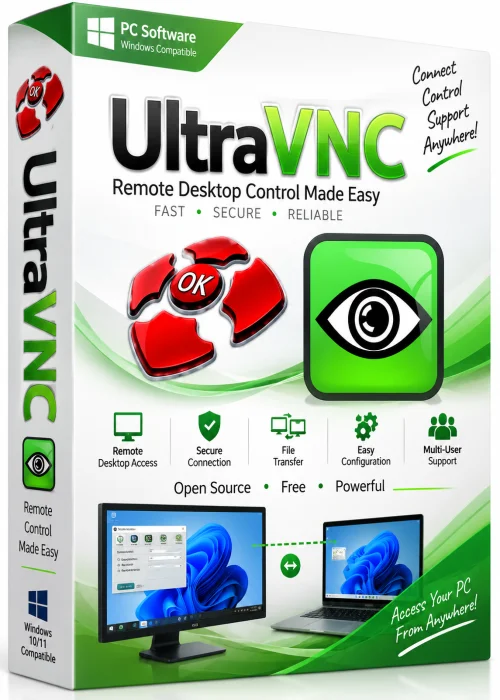
UltraVNC Full PC
Remote Desktop Control Software
Overview
Introduction and Overview
UltraVNC Full PC is a powerful, free, and open-source remote desktop software that allows you to take full control of any computer over the internet or a local network. Whether you are an IT professional managing multiple systems or a home user needing to access your PC from afar, UltraVNC provides a reliable, secure, and feature-rich solution. It uses the Virtual Network Computing (VNC) protocol to display the remote desktop in a window on your local machine, letting you work as if you were sitting right in front of the remote computer. With robust support for Windows, UltraVNC is widely regarded as one of the best remote access tools for its cost-effectiveness, flexibility, and dedicated community.
Key Features
- Remote Desktop Control: View and operate a remote computer in real time with low latency.
- File Transfer: Move files and folders between local and remote machines with an intuitive drag-and-drop interface.
- Text Chat & Voice Communication: Built-in chat options and support for external voice tools for easy collaboration.
- Advanced Encryption: Supports TLS and AES encryption to keep your sessions secure.
- Authentication & Access Control: Set custom passwords and restrict access to specific users or IP addresses.
- Mirror Driver: Fast and efficient screen capture for smooth screen updates.
- Multi-Monitor Support: View or use multiple monitors on the remote side.
- Auto-Reconnect & Session Persistence: Maintains sessions even after temporary network interruptions.
- Works with Windows Remote Desktop: Can share a session with Microsoft's built-in tool for extra flexibility.
System Requirements
Minimum requirements:
- Windows 7 or newer operating system
- 1 GHz processor
- 512 MB RAM
- 50 MB free hard disk space
- Network connection (Ethernet or Wi-Fi)
Recommended requirements:
- Windows 10 or Windows 11
- 2+ GHz multi-core processor
- 2 GB RAM or more
- 100 MB free SSD space
- Broadband internet connection
- Firewall configured to allow inbound/outbound VNC connections (port 5900)
How to Install and Use UltraVNC
Installing and using UltraVNC is straightforward:
- Download: Get the UltraVNC installer from the official website. Choose the version that matches your Windows architecture (32-bit or 64-bit).
- Install: Run the downloaded file, accept the license, and choose between a full installation or custom components. Follow the installation wizard; the default settings work for most users.
- Set Up the Server: On the computer you want to remotely control, launch UltraVNC Server. Right-click its system tray icon and select 'Properties' to set a password for secure connections.
- Connect from a Viewer: On your local computer, open UltraVNC Viewer. Enter the remote PC’s IP address or hostname and click 'Connect'. Input the password when prompted.
- Use the Remote Desktop: Once connected, you can control the remote machine as if using it locally. Use features like file transfer or chat from the toolbar at the top of the viewer window.
Pros and Cons
Pros:
- 100% free with no licensing costs
- Open-source and continuously improved by a community
- High-speed and responsive remote sessions
- Comprehensive feature set including file transfer and chat
- Strong security options with encryption
- Works across different Windows versions
Cons:
- No native support for macOS or Linux (requires extra software or workarounds)
- Setup can be complex for beginners, especially when configuring router port forwarding
- Performance may be slower than paid alternatives like TeamViewer on high-latency connections
- User interface is somewhat dated compared to modern competitors
Conclusion
UltraVNC Full PC remains a top-tier choice for remote desktop access, especially for those who prioritize cost savings and customization without sacrificing essential functionality. Its rich feature set—ranging from secure file transfers to multi-monitor support—makes it suitable for both personal and professional use. While the initial configuration requires a bit of technical know-how, the potential benefits far outweigh the learning curve for users who rely heavily on remote connectivity. If you are searching for a dependable, free remote desktop solution that gives you complete control over your Windows PCs, UltraVNC is definitely worth installing.