Best Alternatives to Code4Ward Royal TS
Explore top software like Code4Ward Royal TS in 2026.
Overview
Introduction and Overview
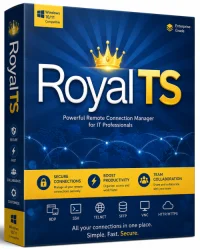
Code4Ward Royal TS is a versatile and powerful remote connection manager designed for IT professionals who deal with multiple servers, workstations, and network devices on a daily basis. It provides a centralized interface for managing various types of remote sessions, including Remote Desktop Protocol (RDP), SSH, Telnet, VNC, HTTP, and more. With Royal TS, you can store all your connection details in encrypted documents, organize them into folders, and access them with just a few clicks. This eliminates the need to remember IP addresses, usernames, passwords, and port numbers, making your workflow more efficient and secure.
The software is developed by code4ward.net, a name known for quality systems administration tools. Royal TS is available in both a free version and a commercial version with advanced features, making it accessible to individual users and large enterprises. Its intuitive tabbed interface resembles a web browser, so most users will feel at home immediately. Whether you are troubleshooting a server issue, deploying updates, or performing routine maintenance, Royal TS streamlines every step of the remote management process.
Key Features
Royal TS is packed with an impressive array of features that set it apart from other remote connection managers. Here are some of its standout capabilities:
- Multi-Protocol Support: Connect to remote systems using RDP, SSH, Telnet, VNC, FTP, SQL, and many other protocols. This eliminates the need for separate clients.
- Tabbed Interface: Work with multiple connections in a single window using tabs, just like a web browser. You can also split the view to see several sessions side by side.
- Centralized Credential Management: Save, edit, and reuse credentials securely. Royal TS supports Windows Credential Manager and integrates with password managers like KeePass.
- Advanced Search and Filtering: Quickly find connections by name, tag, or custom fields, even in large collections of servers.
- Export and Import: Migrate your connection data easily from other tools or share configurations among team members.
- Connection Templates: Create custom templates for repeated tasks, such as a standard RDP session with pre-set display settings, then deploy them in seconds.
- Portable Mode: Run Royal TS from a USB drive without installation, making it perfect for on-the-go support.
- Powerful Automation: The software provides an extensive API and supports PowerShell, allowing you to automate repetitive tasks and integrate with your existing scripts.
- Encrypted Documents: Protect your connection data with AES-256 encryption, ensuring sensitive information remains safe even if your device is lost or stolen.
System Requirements
Before installing Royal TS, ensure your system meets the following requirements for optimal performance.
Minimum Requirements
- Operating System: Windows 7 (SP1), Windows 8, Windows 10, or Windows 11
- Processor: 1 GHz or faster x86 or x64 processor
- RAM: 1 GB (32-bit) or 2 GB (64-bit)
- Hard Disk Space: 50 MB of free space for installation
- .NET Framework: Version 4.7.2 or higher
Recommended Requirements
- Operating System: Windows 10 or Windows 11 (64-bit)
- Processor: 2 GHz or faster multicore processor
- RAM: 4 GB or more
- Hard Disk Space: 100 MB of free space (to accommodate additional plugins and session logs)
- .NET Framework: Latest version available
- Display: 1280x768 or higher resolution for comfortable working with multiple tabs
How to Install and Use
Follow these simple steps to get Royal TS up and running on your system.
- Download the Installer: Visit the official code4ward.net website and navigate to the Royal TS download page. Choose the suitable version (32-bit or 64-bit) and download the installer executable.
- Run the Installer: Double-click the downloaded file. If User Account Control prompts you, click “Yes” to allow the installation.
- Choose Installation Options: Follow the on-screen instructions. You may select the installation directory and whether to create shortcuts. It is recommended to leave the defaults unless you have specific requirements.
- Complete Installation: Once the installation finishes, launch Royal TS from the Start menu or desktop shortcut.
- Create a Document: On first launch, Royal TS will ask you to create a new document. This document will store all your connections and settings. You can give it a meaningful name and choose a location to save it.
- Add a Connection: Right-click the document name in the left pane, select “New” and then “Connection.” Choose the protocol you need, such as RDP or SSH.
- Configure Connection Settings: Enter the server address, port, and any other required details. For authentication, you may use Windows credentials or store them separately in the credential vault.
- Save and Connect: Click “OK” to save the connection, then double-click it to initiate the session. The tabbed interface will open your remote desktop or terminal window.
- Organize Your Connections: Create folders to group related connections by project, client, or location. You can also use tags to enable faster filtering later.
- Explore Additional Features: As you become comfortable, experiment with features such as templates, shortcuts, and the PowerShell integration to maximize your productivity.
Pros and Cons
Pros
- Supports a wide range of protocols, eliminating the need for multiple tools.
- Extremely customizable interface with tabs, layouts, and session groups.
- Strong security with AES encryption and integration with external password managers.
- Free version is available for personal use with generous feature set.
- Portable version allows you to carry your tool and settings anywhere.
- Active community and regular updates from the developer.
- Powerful automation capabilities through API and PowerShell.
Cons
- The free version has connection limits (e.g., a maximum number of concurrent sessions), which may require a paid license for heavy users.
- Initial setup can be overwhelming for beginners due to the vast number of options.
- Some advanced features, like the team edition and plugins, are only available in the paid version.
- No native Linux or macOS client; only a Windows version is offered, though it can run under virtual machines or Wine.
- The user interface feels a bit dated compared to some modern remote management tools.
Conclusion
Code4Ward Royal TS is unquestionably one of the most powerful and flexible remote connection managers available for Windows. Its comprehensive protocol support, combined with advanced features like credential encryption, automation, and a tabbed workspace, makes it an indispensable tool for IT professionals who need to manage multiple remote sessions efficiently. While the free version has some limitations, it still offers more functionality than many premium alternatives. For organizations that demand maximum productivity, investing in the commercial edition is a wise choice that quickly pays for itself in time savings and enhanced workflow.
Whether you’re a lone system administrator handling a few servers or part of a large IT team overseeing thousands of machines, Royal TS can adapt to your needs. The learning curve is moderate, but once you master its features, you’ll wonder how you ever managed without it. Download Royal TS today and take control of your remote connections with confidence.