Best Alternatives to Daemon Tools Lite
Explore top software like Daemon Tools Lite in 2026.
Overview
Introduction and Overview
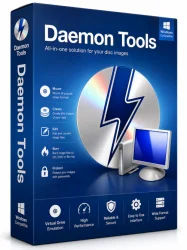
Daemon Tools Lite is a powerful, free disk imaging software that enables you to create, mount, and emulate virtual drives on your computer. Developed by Disc Soft Ltd., this lightweight tool allows you to work with various disk image formats such as ISO, MDX, MDS, and many more without needing physical optical drives. Whether you need to run a game without inserting a CD, backup your discs, or simply organize your digital media, Daemon Tools Lite provides a reliable and efficient solution. Its user-friendly interface and robust functionality make it a favorite among both casual users and IT professionals, offering seamless integration with Windows Explorer and context menus for quick access.
Key Features
- Virtual Drive Mounting: Mount up to 4 DT, SCSI, and HDD virtual devices simultaneously, allowing you to access disc images as if they were physical drives.
- Image Creation: Create ISO, MDS, MDX, and VHD files from CDs, DVDs, Blu-ray discs, or even from files and folders on your hard drive.
- Wide Format Support: Supports over 20 image file types including ISO, BIN/CUE, NRG, CCD, and VHD, making it compatible with most disc images.
- Image Burning: Burn disc images to physical media (CD/DVD/Blu-ray) directly from the interface or via context menu.
- Integration with Windows Shell: Right-click on any image file to mount or burn it without opening the main application.
- Virtual Device Editor: Customize virtual device settings such as region code, drive letter, and emulation type (DT, SCSI, HDD).
- Command Line Interface: Automate tasks with command-line parameters for advanced users.
- Minimal Resource Usage: Runs efficiently in the background with low CPU and memory consumption.
System Requirements
Minimum System Requirements:
- Operating System: Windows 7, 8, 10, or 11 (32-bit or 64-bit)
- Processor: 1.5 GHz or faster
- RAM: 512 MB
- Hard Disk Space: 100 MB for installation
- Optical Drive: Not required, but recommended for disc image creation
Recommended System Requirements:
- Operating System: Windows 10 or 11 (64-bit)
- Processor: 2 GHz dual-core processor
- RAM: 2 GB or more
- Hard Disk Space: 500 MB for installation and temporary files
- Graphics: DirectX 9.0c or later
How to Install and Use
Installation Steps:
- Download: Visit the official Daemon Tools Lite website and download the latest version. Choose the free Lite edition.
- Run the Installer: Double-click the downloaded .exe file. If prompted by User Account Control, click Yes.
- Select Language: Choose your preferred language and click OK.
- Accept License: Read the license agreement and click I Agree.
- Installation Options: You can choose the installation folder and select additional components like the shell extension. It is recommended to keep defaults. Click Install.
- Finish: After installation, click Finish. The program may launch automatically.
Basic Usage:
- Mount an Image: Right-click on an .iso file in Windows Explorer, select Mount from the context menu (if enabled). Alternatively, open Daemon Tools Lite, click the Quick Mount button, and browse to your image file.
- Create an Image: Insert a disc into your physical drive. Open Daemon Tools Lite, click on New Image, choose the source drive, and select output format (ISO recommended). Click Start.
- Burn an Image: Right-click an image file and select Burn Image, or use the Burn Image option in the program. Insert a blank disc and follow the wizard.
- Unmount a Virtual Drive: In the main interface, click the Unmount button next to the virtual drive. Or right-click the virtual drive in Explorer and select Eject.
Pros and Cons
Pros:
- Free of charge: The Lite version is completely free with no time limits or watermarks.
- Lightweight: Minimal impact on system performance, even when multiple virtual drives are in use.
- User-friendly: Intuitive interface and context menu integration make common tasks easy.
- Versatile format support: Handles most disc image formats used in gaming, software, and media.
- Reliable virtual drive emulation: Works with copy-protected discs and older software.
Cons:
- Ad-supported: The free version displays occasional prompts to upgrade to the paid Pro edition.
- Limited premium features: Virtual drives are limited to 4 devices; advanced options like USB boot and audio CD grabbing require purchase.
- Occasional compatibility issues: Some users report conflicts with anti-virus software or Windows updates.
- No Linux or macOS support: Only available for Windows.
Conclusion
Daemon Tools Lite remains a top choice for disk imaging and virtual drive management on Windows. Its combination of essential features, broad format support, and ease of use make it invaluable for gamers who need to run ISO files, IT professionals managing disk images, or anyone looking to reduce physical media clutter. While the ad-supported model and limited free version may push power users toward the paid Pro edition, for most users the Lite version offers everything needed to mount and create images effortlessly. If you’re seeking a reliable, no-cost solution for handling disc images, Daemon Tools Lite is a proven option that continues to deliver solid performance.