Best Alternatives to Movavi Video Converter
Explore top software like Movavi Video Converter in 2026.
Overview
Introduction and Overview of Movavi Video Converter
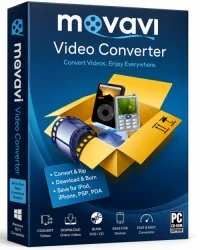
Movavi Video Converter is a versatile and user-friendly multimedia tool designed to handle all your video and audio conversion needs. Whether you are a content creator, a student compiling a presentation, or just someone who wants to watch videos on different devices, this software promises a simple and efficient solution. Developed by Movavi, a company known for its accessible media software, this converter supports over 180 formats, including MP4, AVI, MOV, MKV, WMV, and even modern codecs like HEVC and VP9. It doesn't just stop at converting files; it also offers basic editing tools, device-specific presets, and high-speed conversion with GPU acceleration. In this article, we will explore the ins and outs of Movavi Video Converter, helping you decide if it is the right tool for your file conversion needs.
Key Features
Movavi Video Converter is packed with features that make it stand out in a crowded market. Here are the key features that users find most valuable:
- Broad Format Support: Convert between virtually any video, audio, and image format. Over 180 formats are supported, including MP3, AAC, FLAC, WAV, and even lossless formats like FLAC and ALAC for audio.
- Lightning-Fast Conversion: Thanks to SuperSpeed mode, which utilizes GPU acceleration (NVIDIA, AMD, and Intel), conversions are up to 79 times faster than real-time. This is a game-changer for large files.
- Device-Specific Presets: Choose tailored presets for your specific device—whether it's an iPhone, iPad, Android phone, PlayStation, Xbox, or even a smart TV. The software automatically optimizes the output settings.
- Built-in Video Editor: You don't need a separate editing suite for basic tasks. Trim, crop, rotate, add filters, and adjust contrast, brightness, and saturation directly in the converter.
- Subtitle Support: Add or edit subtitles to your videos. You can even embed subtitles directly into the file or convert videos with subtitles preserved.
- Audio Extraction and Conversion: Rip audio from video files and save them as high-quality MP3, FLAC, OGG, or other formats. Perfect for creating soundtracks or ringtones.
- Batch Conversion: Save time by converting multiple files at once. The software handles them seamlessly in a queue, and you can even choose different output formats for each file.
- Download Functionality: Although primarily a converter, it integrates with Movavi's companion tools to allow downloading online videos and music, making it a more complete media utility.
System Requirements
Before downloading Movavi Video Converter, it's important to ensure your system can run it smoothly. The official minimum and recommended requirements are as follows:
Minimum Requirements
- Operating System: Windows 10, 8, 7, or macOS 10.10 and later (for Mac versions).
- Processor: Intel, AMD, or compatible dual-core CPU (1.8 GHz or faster).
- RAM: 256 MB or more (but 1 GB is suggested for basic operation).
- Free Disk Space: 200 MB for installation plus space for output files.
- Graphics: Any, but GPU acceleration is not available on minimal specs.
Recommended Requirements
- Operating System: Windows 11/10 (64-bit) or macOS 12/13 or newer.
- Processor: Intel Core i5 or AMD Ryzen 5 (or better) for 4K processing.
- RAM: 4 GB or more (8 GB recommended for 4K media).
- Free Disk Space: 1 GB or more for temporary files during conversion of large videos.
- Graphics: NVIDIA GeForce GTX 1050 or higher, AMD Radeon RX 560 or higher, or Intel HD Graphics 630 or later for GPU acceleration.
How to Install and Use Movavi Video Converter
Getting started with Movavi Video Converter is straightforward. Follow these simple steps to install and start converting your first file:
- Download the Installer: Visit the official Movavi website and click the download button for Windows or Mac. The trial version is fully functional but adds a watermark and limits some features.
- Run the Installer: Once the .exe or .dmg file is downloaded, open it and follow the on-screen instructions. You can choose the installation directory and whether to create shortcuts. Typically, the default settings are fine.
- Launch the Program: After installation, launch Movavi Video Converter. You’ll be greeted by a clean, intuitive interface.
- Add Files: Click the 'Add Media' button or drag-and-drop your video(s) or audio file(s) into the drop zone. You can also import files from your computer, optical disc, or even download directly from the internet using the built-in browser.
- Choose Output Format: Click on the 'Convert' tab at the bottom and select a category (e.g., Video, Audio, or Device). Then pick your final format. If you want a preset for a specific device, go to the 'Devices' tab.
- Edit (Optional): Use the editing tool to trim, crop, rotate, or apply effects. Simply click the pencil icon next to the file to open the editing window. When you're done, click 'Done'.
- Select Output Folder: At the bottom of the window, choose where you want to save the converted file.
- Convert: Click the big 'Convert' button. If you have SuperSpeed mode available, it will automatically engage for compatible hardware. You can monitor progress in the queue.
- Stop or Pause: You can pause or stop any conversion at any time. When finished, the file will be in your selected folder.
That's all there is to it. The entire process is designed to be as simple as possible, making it accessible even for beginners.
Pros and Cons
To give you a balanced view, here are the notable strengths and weaknesses of Movavi Video Converter.
Pros
- Exceptional Ease of Use: The interface is clean, modern, and logical. Even novices can navigate it without reading a manual.
- Fast Conversion Speeds: The SuperSpeed technology genuinely saves hours when working with large batches or 4K files.
- Large Format and Device Coverage: With over 180 formats and a huge library of device presets, it's incredibly versatile.
- Built-in Basic Editing: Trim, crop, and color adjustments eliminate the need for extra tools for quick fixes.
- Reliable Performance: The software is stable and rarely crashes, even under heavy load.
Cons
- Price: The full version is not cheap, and the free trial adds a watermark and limits conversion length.
- Feature Depth Limitation: While great for basic edits, its editing tools are not a substitute for a full video editor like Adobe Premiere.
- Not Free: There are free converters available, but they often lack the speed, format support, and usability.
- Online Download is Add-on: The ability to download online videos is actually part of Movavi's other tools, which are not always included in the base converter package.
Conclusion
Movavi Video Converter is a powerful, reliable, and highly accessible tool for anyone who deals with video or audio files regularly. Its speed, format support, and user-friendly design make it an excellent choice for both casual users and professionals who need a quick conversion solution without a steep learning curve. While the price might be a concern for some, the time saved and the quality of the output justify the investment, especially if you regularly convert large files or need to prepare media for various devices. If you're looking for a dependable video converter that balances ease of use with advanced features, Movavi Video Converter deserves a serious look.