Best Alternatives to MultiOS-USB Program
Explore top software like MultiOS-USB Program in 2026.
Overview
Introduction and Overview
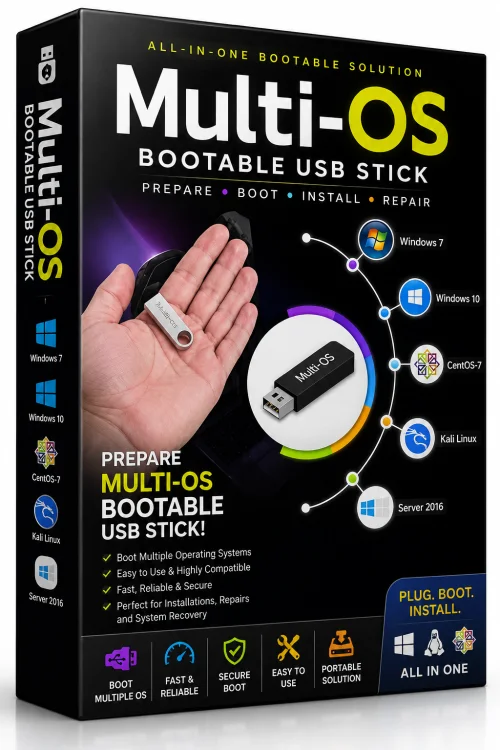
MultiOS-USB Program is a powerful and versatile utility designed to simplify the creation of multi-boot USB drives. Unlike traditional tools that allow only a single operating system per USB stick, MultiOS-USB enables you to store and launch multiple ISO files, live distributions, and even portable applications from one drive. Whether you are a system administrator managing a fleet of computers, a tech enthusiast testing various Linux distros, or a repair technician needing a comprehensive rescue toolkit, MultiOS-USB offers an all-in-one solution. With its intuitive interface and robust underlying technology, it eliminates the need to carry multiple USB drives and reduces the time spent formatting and reinstalling bootable media. The program is completely free and open-source, making it accessible to both casual users and IT professionals. By leveraging a boot manager that intelligently detects and lists all available ISO files, MultiOS-USB provides a seamless, menu-driven experience that streamlines the boot process.
Key Features
- Multi-Boot Support: Create a single USB drive that can boot multiple operating systems, including Windows, Linux distributions, and standalone utilities like GParted or MemTest86.
- User-Friendly Interface: The clean, drag-and-drop interface allows you to add ISO files directly without complex configuration.
- Persistent Storage: Preserve changes and files across reboots for supported Linux distributions, enabling a live environment that acts like a full installation.
- Portable Mode: Run MultiOS-USB directly from a USB stick or external hard drive without requiring installation on the host computer.
- Ventoy-Compatible: Works seamlessly with Ventoy-formatted drives, allowing you to take advantage of both tools' strengths.
- UEFI and Legacy BIOS Support: Automatically detects and boots in both modern UEFI and older BIOS systems for maximum compatibility.
- Cross-Platform: Available for Windows, Linux, and macOS, so you can create bootable drives from almost any machine.
- ISO Integrity Checks: Validates ISO files before flashing, reducing the risk of corrupted boot media.
- Customizable Boot Menu: Personalize the menu with labels, icons, and background images to suit your preferences.
- Lightweight and Fast: The program is small in size and performs quick writes, even with multiple ISO files.
System Requirements
MultiOS-USB is designed to be lightweight and run on modest hardware. Below are the minimum and recommended specifications for a smooth experience.
Minimum Requirements
- CPU: 1 GHz single-core processor
- RAM: 512 MB (1 GB for Linux)
- Storage: 50 MB free space for the program files
- USB Drive: Any USB 2.0 drive with at least 2 GB capacity (depending on the size of ISOs)
- Operating System: Windows 7, Ubuntu 16.04, or macOS 10.12
Recommended Requirements
- CPU: Dual-core 2 GHz or faster
- RAM: 2 GB or more
- Storage: 100 MB free space
- USB Drive: USB 3.0 drive with at least 16 GB capacity to host multiple large ISOs
- Operating System: Windows 10/11, Ubuntu 22.04 LTS, or macOS 12+
- Internet Connection: Required for downloading ISO files and software updates (optional but recommended)
How to Install and Use
Follow these step-by-step instructions to install and start using MultiOS-USB. The process is straightforward and typically takes less than five minutes.
- Download the Software: Visit the official MultiOS-USB website and download the latest version for your operating system (Windows, Linux, or macOS). Save the archive to your computer.
- Extract the Files: If the download is a ZIP or TAR archive, extract it to a folder. For Windows, you will find an executable file like multios-usb.exe. On Linux, you may need to make the binary executable using chmod +x.
- Prepare Your USB Drive: Insert an empty USB drive into your computer. Ensure that you have backed up any important data, as the process will erase everything on the drive. If the drive is not already formatted, you can use MultiOS-USB’s built-in formatting tool.
- Launch MultiOS-USB: Run the program with administrator/root privileges. On Windows, right-click and select “Run as administrator”. On Linux, use sudo ./multios-usb from the terminal.
- Select the USB Drive: In the main interface, choose your target USB device from the dropdown menu. Double-check that you have selected the correct drive to avoid accidental data loss.
- Add ISO Files: Click the “Add” button or drag-and-drop your ISO files into the list. You can add as many as your USB capacity allows. The program will automatically detect the type of each ISO.
- Configure Options: If desired, enable persistent storage for supported distributions, set the boot menu theme, or adjust partition sizes. The default settings work well for most users.
- Install to USB: Click the “Install” or “Create” button. The program will format the USB drive, copy the required boot files, and transfer all ISO files. This may take several minutes depending on the size and number of ISOs.
- Boot from USB: Once complete, safely eject the USB drive and insert it into the target computer. Restart the computer and press the appropriate key (e.g., F12, F2, ESC) to enter the boot menu. Select your USB drive and press Enter.
- Select an Operating System: A boot menu will appear listing all the ISOs you added. Use the arrow keys to choose one and press Enter to start it. You can now enjoy booting multiple operating systems from a single USB stick.
Pros and Cons
Pros
- Free and open-source with no hidden fees.
- Supports an extensive range of OS images and utilities.
- Very easy to use, even for beginners.
- Offers persistent storage for many popular Linux distributions.
- Cross-platform compatibility for the installer.
- Regular updates and active community support.
- Works with both UEFI and legacy BIOS systems.
Cons
- Cannot add Windows installation ISOs via the standard method; special handling is required.
- Large ISO collections may require a high-capacity USB drive, which can be expensive.
- Some antivirus software may falsely flag the boot loader as a threat.
- Occasional compatibility issues with very new or obscure ISO formats.
- No built-in ISO downloader or updater.
Conclusion
MultiOS-USB Program is a game-changer for anyone who regularly works with multiple operating systems. Its ability to turn a single USB drive into a versatile multi-boot device saves time, reduces clutter, and increases efficiency. The user-friendly design makes it accessible to novices, while advanced features like persistent storage and Ventoy compatibility cater to power users. Although it has a few limitations, such as the extra steps needed for Windows ISOs, the overall performance and reliability far outweigh the downsides. Whether you are creating a portable diagnostic toolkit or simply experimenting with different Linux distros, MultiOS-USB is an essential addition to your software arsenal. Download it today and experience the convenience of having an entire collection of operating systems right in your pocket.