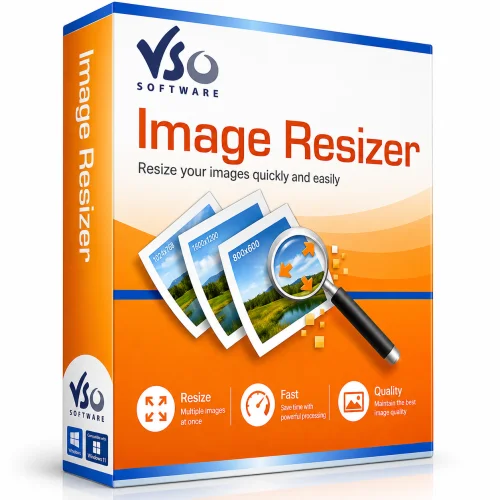
Light Image Resizer for Windows 10/11
Optimize your PC with the fully compatible Windows 10 version.
Overview
Light Image Resizer is a powerful yet lightweight desktop application designed to help you resize, compress, convert, and manage your images with ease. Whether you are a professional photographer, a web developer, or just someone who wants to share photos online, this tool simplifies the entire process. It supports batch processing, meaning you can resize hundreds of images at once, saving you precious time and effort. With its intuitive interface and robust feature set, Light Image Resizer has become a go-to solution for anyone looking to optimize their image library without sacrificing quality.
Key Features
- Batch Resizing: Resize multiple images in one go with custom dimensions, percentage scaling, or preset templates for common platforms (e.g., Instagram, YouTube, email).
- Compression and File Size Reduction: Reduce the file size of images while maintaining acceptable visual quality, ideal for web uploads and storage optimization.
- Format Conversion: Convert between popular formats such as JPG, PNG, GIF, BMP, TIFF, WebP, and more.
- Rename and Organize: Automatically rename files based on predefined patterns, add prefixes or suffixes, and organize output into folders.
- Watermarking: Add text or image watermarks to protect your work or brand your photos before sharing.
- Metadata Preservation: Keep EXIF data intact during resizing, ensuring important camera details are not lost.
- Folder Monitoring: Set the app to watch a folder and automatically process new images as they arrive.
- Integration with Context Menu: Right-click any image or folder directly in Windows Explorer to launch resizing tasks.
- Advanced Editing: Adjust brightness, contrast, saturation, sharpness, and apply basic rotation and cropping.
- Multi-language Support: The interface is available in numerous languages, making it accessible worldwide.
System Requirements
Light Image Resizer is designed to run on Windows operating systems. It is a lightweight application that works well on both older and newer machines. The minimum and recommended specifications are listed below to ensure smooth performance.
Minimum Requirements
- Operating System: Windows 7 or newer (including Windows 10 and 11)
- CPU: 1 GHz processor
- RAM: 512 MB
- Hard Disk Space: 50 MB of free space
- Display: 1024x768 screen resolution
Recommended Requirements
- Operating System: Windows 10 or 11 (64-bit)
- CPU: 2 GHz dual-core processor
- RAM: 2 GB
- Hard Disk Space: 200 MB of free space
- Display: 1920x1080 screen resolution
For best performance when processing large batches of high-resolution images, a faster CPU and additional RAM are advisable. The software is optimized to handle common image formats without requiring plugins.
How to Install and Use
Installing and using Light Image Resizer is straightforward. Follow these step-by-step instructions to get started:
- Download: Visit the official website and download the latest version of Light Image Resizer. Choose either the free version or the Pro version, depending on your needs.
- Install: Run the downloaded installer. Follow the on-screen prompts, accept the license agreement, and select an installation directory. The setup process takes less than a minute.
- Launch: After installation, open the application from the Start menu or double-click the desktop icon if you created one.
- Add Images: Click the "Add Files" or "Add Folder" button to select the images you want to process. Alternatively, you can drag and drop images directly into the main window.
- Choose Settings: In the main interface, set your desired resize options. You can specify new dimensions, compression level, output format, rename rules, and watermark options. The preview pane shows a real-time example of how your settings will affect the image.
- Set Output Folder: Choose where the processed images should be saved. You can keep the original files or overwrite them (we recommend saving to a new folder to avoid data loss).
- Start Processing: Click the "Resize" or "Start" button. The software will process all images in the queue. A progress bar displays the status, and you can pause or cancel if needed.
- Done: Once finished, a notification will appear. Navigate to the output folder to review your optimized images.
For advanced users, the tiered menu options allow you to fine-tune JPEG compression, adjust DPI, and even integrate with external editors. The context menu integration means you can simply right-click an image in Windows Explorer and select "Resize" to instantly launch a pre-configured task.
Pros and Cons
Every software has its strengths and weaknesses. Here is a balanced look at the pros and cons of Light Image Resizer:
Pros
- User-Friendly: The interface is clean and intuitive, making it accessible even for beginners.
- Batch Processing: Saves enormous time when working with large collections of images.
- Comprehensive Features: Combines resizing, conversion, renaming, watermarking, and basic editing in one tool.
- Free Version Available: The free version includes most core functions, and the Pro version is reasonably priced for advanced features.
- Fast Performance: Even with hundreds of large images, the processing speed is impressive.
- Portable Option: A portable version is available that does not require installation, making it convenient for USB drives.
Cons
- Windows Only: There is no version for macOS or Linux, limiting cross-platform usage.
- Limited Advanced Editing: While it covers basic adjustments, it is not a replacement for full-featured photo editors like Photoshop.
- Watermark Limitations in Free Version: Some watermark features are only available in the Pro version.
- Occasional Bloatware Offers: The installer may prompt you to install third-party software, which can be annoying if not carefully read.
- No RAW Format Support: Raw files from professional cameras are not directly supported in the free version.
Conclusion
Light Image Resizer is an exceptional tool for anyone who regularly works with digital images. Its blend of simplicity, powerful batch processing, and a wide array of features make it stand out in the crowded image utility market. For photographers, webmasters, and everyday users, it offers a reliable solution to resize and compress images without losing quality. The free version is generous enough for most users, while the Pro version unlocks even more capabilities like advanced watermarking and direct upload to cloud services. If you are seeking a fast, efficient, and easy-to-use image resizing tool, Light Image Resizer is definitely worth trying. Download it today and experience the convenience of bulk image processing at your fingertips.