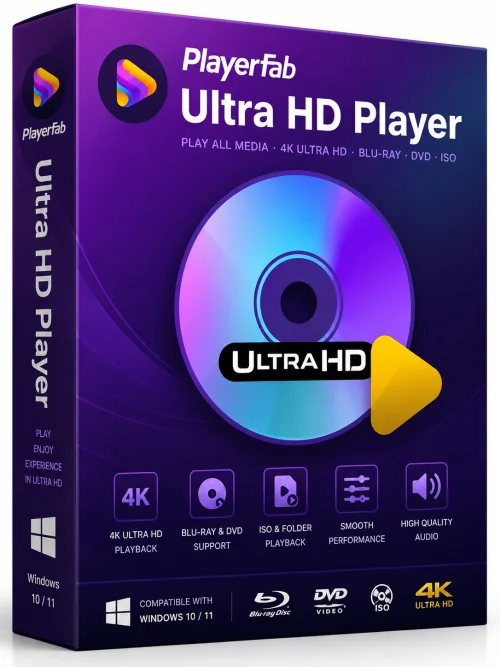
PlayerFab Ultra HD Player 64-bit Offline Installer
Get the standalone offline installer for 64-bit systems.
Overview
PlayerFab Ultra HD Player is a powerful and versatile media player designed to deliver an exceptional playback experience for high-resolution video content. Whether you are watching a 4K HDR movie, an 8K video file, or simply streaming content from your local network, PlayerFab ensures smooth, vibrant, and immersive playback. Unlike standard media players that often struggle with modern video codecs and high bitrate files, PlayerFab leverages advanced hardware acceleration and a robust set of features to handle even the most demanding media files with ease. This article will explore the software's key features, system requirements, installation process, and overall pros and cons to help you decide if it is the right player for your needs.
Key Features
PlayerFab Ultra HD Player comes packed with a suite of features that cater to both casual viewers and home theater enthusiasts. Below are some of the standout capabilities:
- Ultra HD Playback: Supports 4K, 8K, and even 10-bit HDR content with stunning clarity and color accuracy, including HDR10, HDR10+, Dolby Vision, and HLG profiles.
- Advanced Hardware Acceleration: Utilizes NVIDIA CUDA, Intel Quick Sync, and AMD hardware decoding to offload video processing from the CPU, ensuring buttery-smooth playback even on lower-end systems.
- Wide Format Compatibility: Plays virtually all video and audio formats, including MKV, MP4, AVI, HEVC, VP9, AV1, FLAC, DTS, and AC3, eliminating the need for multiple codec packs.
- High-Resolution Audio: Supports lossless audio passthrough for formats like Dolby Atmos and DTS:X, providing a cinematic sound experience.
- Subtitle Support: Handles embedded and external subtitles (SRT, ASS, SUB, etc.) with customizable fonts, sizes, and synchronization controls.
- Network Streaming: Allows playback of media from SMB, UPnP/DLNA, and FTP servers, making it easy to stream your library from a NAS or PC.
- Screen Capture and GIF Creation: Built-in tools to capture screenshots or record short GIFs from any video scene without interrupting playback.
- Customizable Interface: Offers various themes, customizable hotkeys, and playback speed controls for a personalized user experience.
- HDR to SDR Conversion: Automatically converts HDR content to SDR for non-HDR displays, ensuring correct colors and brightness on any screen.
- Multi-Audio Track Selection: Easily switch between multiple audio tracks within a single file, ideal for multilingual movies.
System Requirements
To run PlayerFab Ultra HD Player smoothly, your computer should meet the following specifications. Below are both minimum and recommended requirements.
Minimum Requirements
- OS: Windows 7 SP1, 8, 10, or 11 (64-bit only)
- CPU: Dual-core processor (Intel Core i3 or equivalent)
- RAM: 4 GB
- Graphics: DirectX 10-compliant GPU with at least 256 MB VRAM
- Storage: 500 MB of free disk space for installation
- Display: 1280x720 resolution or higher
Recommended Requirements
- OS: Windows 10/11 (64-bit)
- CPU: Quad-core processor or higher (Intel Core i5 or AMD Ryzen 5)
- RAM: 8 GB or more
- Graphics: Dedicated GPU supporting hardware decoding (NVIDIA GTX 10 series or newer, AMD RX 400 series or newer, or Intel UHD Graphics 600 series)
- Storage: SSD with 1 GB free space for optimal performance
- Display: 4K capable monitor for true Ultra HD viewing
- Network: Gigabit Ethernet or Wi-Fi 5 for smooth network streaming
How to Install and Use
Getting started with PlayerFab Ultra HD Player is straightforward. Follow these step-by-step instructions for installation and basic usage.
Installation
- Step 1: Download the installer from the official website or a trusted software repository. Make sure to select the version compatible with your Windows architecture (64-bit).
- Step 2: Run the downloaded setup file and allow it to make changes to your device if prompted.
- Step 3: Follow the on-screen instructions, choose your preferred installation directory, and decide whether to create a desktop shortcut.
- Step 4: Click 'Install' and wait for the process to complete. This usually takes less than a minute.
- Step 5: Launch the program from the Start menu or desktop icon. On first run, you may be prompted to select a default interface theme or set association preferences.
Basic Usage
- Play a local file: Click the “Open” button or drag and drop your video file directly into the PlayerFab window. The player will automatically detect the file and begin playback.
- Adjust playback settings: Right-click on the video to access the context menu, where you can adjust audio tracks, subtitles, playback speed, aspect ratio, and video filters.
- Enable HDR: If you are watching HDR content on an HDR-capable display, ensure that your Windows HDR settings are enabled. PlayerFab will automatically detect and output the correct HDR signal.
- Stream from network: Go to the “Network” tab in the main menu, select the protocol (e.g., SMB, UPnP), and browse for shared folders. You can add network locations for quick access.
- Use keyboard shortcuts: Common shortcuts include Space (play/pause), Left/Right arrows (seek), Up/Down arrows (volume), and F for fullscreen. A full list is available in the Settings under “Hotkey.”
Pros and Cons
Every software has its strengths and weaknesses. Below is a balanced overview of PlayerFab Ultra HD Player.
Pros
- Excellent playback quality: Handles high-bitrate 4K/8K files with minimal stutter and accurate HDR tone mapping.
- Comprehensive format support: Eliminates the need for external codecs; plays almost any file you throw at it.
- Hardware acceleration: Maximizes GPU usage, resulting in lower CPU load and longer battery life on laptops.
- User-friendly interface: Clean layout with easy access to advanced options, making it suitable for both beginners and power users.
- Network streaming: Built-in support for various protocols simplifies accessing media from other devices.
- Regular updates: The developers frequently add new features and fix bugs, ensuring compatibility with the latest video codecs.
Cons
- Windows only: No native support for macOS or Linux, limiting its accessibility.
- Resource heavy on old hardware: While hardware acceleration helps, very old GPUs may still struggle with 8K content.
- No free version: After a trial period, a license is required for continued use, unlike some free alternatives like VLC.
- Limited advanced settings: Some video/audio processing options are not as granular as those found in dedicated enthusiast tools (e.g., MadVR).
Conclusion
PlayerFab Ultra HD Player stands out as a premium media player for Windows users who demand the best in high-resolution playback. Its ability to effortlessly handle 4K and 8K HDR content, combined with extensive format support and network streaming capabilities, makes it a valuable tool for home theater setups and everyday use. While it is not free and lacks cross-platform support, the performance and feature set justify the investment for users who frequently watch high-end video files. If you are tired of choppy playback and codec issues, PlayerFab Ultra HD Player offers a polished, reliable solution that will elevate your viewing experience.