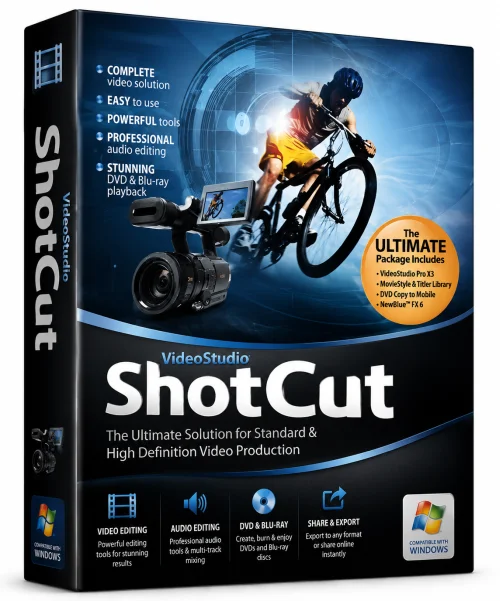
ShotCut Video Editor for Windows 10/11
Optimize your PC with the fully compatible Windows 10 version.
Overview
ShotCut Video Editor is a powerful, free, and open-source video editing application designed for creators who demand professional results without the high cost of commercial software. Whether you are a beginner editing your first vlog or a professional producing cinematic content, ShotCut offers an impressive array of tools that rival paid editors. It supports an extensive range of video, audio, and image formats, and because it is built on FFmpeg, it can handle virtually anything you throw at it. Best of all, ShotCut is available on Windows, macOS, and Linux, making it a versatile choice for any workflow.
Key Features
ShotCut Video Editor comes packed with features that cater to both novice and advanced users. Here are some of its standout capabilities:
- Native Timeline Editing: Drag-and-drop clips onto a multi-track timeline for precise cutting, trimming, and arranging.
- 4K and HD Support: Edit and export high-resolution videos up to 4K, with support for many common codecs and frame rates.
- No Import Required: ShotCut directly accesses media files, saving time and storage space by eliminating the need for import processes.
- Wide Format Compatibility: Uses FFmpeg to handle thousands of formats, including ProRes, DNxHR, H.264, HEVC, and more.
- Advanced Filters and Effects: Apply color grading, chroma key (green screen), audio filters, 3D text, and dozens of visual effects.
- Audio Editing Tools: Mix multiple audio tracks, apply equalizers, compressors, and noise gates, and synchronize audio with video seamlessly.
- Proxy Editing: Use low-resolution proxy files for smooth editing of high-res footage, then switch back to full quality for export.
- Keyframe Animation: Animate position, scale, rotation, opacity, and effect parameters with custom keyframes.
- Hardware Acceleration: Take advantage of OpenGL and GPU-accelerated effects for faster rendering and playback.
- Customizable Interface: Rearrange panels, choose light/dark themes, and save custom layouts to suit your editing style.
- Screen Recording: Capture your screen directly within ShotCut for tutorials or gaming videos.
System Requirements
Before downloading ShotCut Video Editor, ensure your system meets the minimum specifications to run the software smoothly. For an optimal experience, especially when working with high-resolution footage, the recommended specs are advised.
Minimum Requirements
- Operating System: Windows 10 (64-bit), macOS 10.14 (Mojave), or a modern 64-bit Linux distribution
- Processor: Dual-core CPU (Intel Core i3 or AMD equivalent)
- RAM: 4 GB
- Graphics: GPU with OpenGL 2.0 support
- Storage: 1 GB free space for installation
Recommended Requirements
- Operating System: Windows 11, macOS 12 Monterey or newer, or updated 64-bit Linux
- Processor: Quad-core or better (Intel Core i7 or AMD Ryzen 7)
- RAM: 8 GB or more (16 GB for 4K editing)
- Graphics: Dedicated GPU with OpenGL 3.2+ support (e.g., NVIDIA GTX/RTX, AMD Radeon)
- Storage: SSD for fast media access and proxy file caching
How to Install and Use ShotCut Video Editor
Getting started with ShotCut is straightforward. Follow these steps to install and begin editing your first video.
Step 1: Download the Installer
Visit the official ShotCut website and navigate to the download page. Choose the installer for your operating system — Windows (.exe), macOS (.dmg), or Linux (AppImage, .deb, or Snap). Download the latest stable version.
Step 2: Install the Software
For Windows: Double-click the downloaded .exe file, follow the installation wizard, accept the license agreement, and select your preferred installation directory. For macOS: Open the .dmg file and drag the ShotCut icon into your Applications folder. For Linux: Make the downloaded AppImage executable and run it, or use your package manager for .deb/.rpm files.
Step 3: Launch and Configure
Open ShotCut. On first launch, you can select your preferred theme and interface layout. Take a moment to explore the default workspace, which consists of the media viewer, toolbar, and timeline at the bottom.
Step 4: Create a New Project
Click on 'New' in the toolbar or select 'File > New' to start a project. Set your video mode, resolution, and frame rate according to your source footage and desired output. For most users, choosing a preset like '4K 3840x2160 30fps' or '1080p 60fps' works well.
Step 5: Add Media Files
Click the 'Open File' button on the toolbar to add your video clips, audio files, and images to the Playlist. Since ShotCut does not require import, your files are ready to use instantly. You can also drag and drop media directly into the Playlist from your file explorer.
Step 6: Edit Your Timeline
Drag clips from the Playlist onto the Timeline. Use the razor tool to split clips, the selection tool to move them, and the trim tool to adjust their duration. You can add multiple video and audio tracks, apply transitions between clips, and add text overlays or effects from the Filters panel.
Step 7: Export Your Video
When your edit is complete, click the 'Export' button in the toolbar. In the export dialog, choose a file format such as MP4 (H.264) for broad compatibility, adjust the resolution and bitrate, and select a destination folder. Click 'Export' to render your video. ShotCut will show a progress bar, and you can cancel or queue multiple exports as needed.
Pros and Cons
ShotCut Video Editor is a robust tool, but no software is perfect. Here are the primary advantages and drawbacks to consider.
Pros
- Completely Free: No subscription, no hidden fees, and no watermark on exported videos.
- Open Source: Actively developed by a community, with frequent updates and full transparency.
- Cross-Platform: Seamless editing experience on Windows, macOS, and Linux.
- No Media Import Hassle: Directly access files, which is efficient and saves disk space.
- Extensive Format Support: Handles almost any codec thanks to FFmpeg integration.
- High Customizability: Interface layouts, keyboard shortcuts, and filters can be tailored to your workflow.
Cons
- Steep Learning Curve: The interface can be overwhelming for absolute beginners due to the abundance of options.
- Cluttered Workspace: Many panels can feel crowded on smaller screens, requiring manual arrangement.
- Performance Issues: Some complex effects or high-resolution timelines may lag on lower-end hardware.
- Occasional Instability: As with many free editors, users may experience rare crashes, especially during heavy exports.
Conclusion
ShotCut Video Editor is an exceptional choice for anyone seeking a professional-grade video editor without spending money. Its comprehensive feature set, cross-platform availability, and impressive format support make it a top contender in the open-source editing space. While it may take some time to master, the learning curve is a worthwhile investment, and the thriving community ensures you will always find tutorials and support. Whether you are editing YouTube videos, short films, or corporate presentations, ShotCut provides the tools you need to bring your vision to life. Download it today and unlock a world of creative possibilities — all for free.