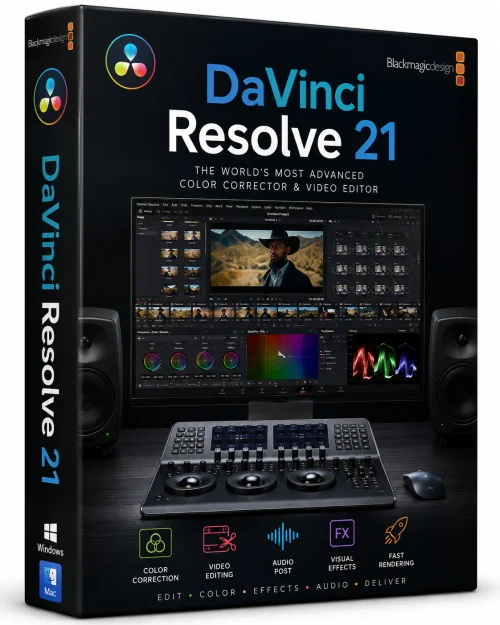
DaVinci Resolve Full Old & Previous Versions
Download legacy versions of DaVinci Resolve Full.
Overview
Introduction and Overview
DaVinci Resolve Full is the industry-standard video editing and color grading software developed by Blackmagic Design. It is a comprehensive post-production suite that combines professional 8K editing, color correction, visual effects, motion graphics, and audio post-production all in one powerful application. Unlike many other video editors, DaVinci Resolve Full is known for its Hollywood-grade color grading tools, which have been used in countless blockbuster films and television shows. It is a favorite among professional editors, colorists, VFX artists, and sound designers because it offers everything needed to complete a project from start to finish without the need for multiple separate applications.
The 'Full' version of DaVinci Resolve refers to the complete, uncut version of the software, which is available for free. That's right—DaVinci Resolve offers a stunningly feature-rich free version that rivals and even surpasses many paid video editors. For those who need even more advanced capabilities, there is a paid 'DaVinci Resolve Studio' version with additional features like noise reduction, 3D tools, and multi-user collaboration. But this article focuses on the 'Full' free version, which already provides an extraordinary set of tools that are more than sufficient for professional and amateur creators alike.
The software handles everything from simple YouTube videos to complex feature films. Its node-based color grading interface gives you unlimited creative control, while its nonlinear editing timeline is both fast and intuitive. Additionally, the latest versions of DaVinci Resolve include built-in AI features for auto color balancing, voice isolation, and smart reframing, making the editing process even smoother. Whether you are a YouTuber, a filmmaker, a wedding videographer, or a corporate video producer, DaVinci Resolve Full is a game-changer.
Key Features
- Professional Video Editing: Cut, trim, blend, and edit with a timeline that supports unlimited tracks, trimming tools, ripple edits, and dynamic transitions. The editing page is designed for speed and precision, with a customizable layout that adapts to your workflow.
- Industry-Leading Color Grading: DaVinci Resolve is legendary for its color correction capabilities. With color wheels, curves, HSL qualifiers, and a node-based interface, you can match shots perfectly, create cinematic looks, and control every aspect of color with unprecedented accuracy.
- Fusion Visual Effects and Motion Graphics: Built-in Fusion workspace lets you create advanced 2D and 3D composites, animations, titles, and visual effects. It includes hundreds of tools for keying, tracking, rotoscoping, particles, and more, without needing separate software.
- Fairlight Audio Post-Production: A full-featured digital audio workstation (DAW) inside DaVinci Resolve. Record, edit, mix, and master audio with up to 2,000 tracks, audio effects, noise reduction, and immersive 3D audio support.
- AI-Powered Tools: The 'Full' version includes AI-driven features such as Magic Mask for quick cutouts, Auto Color for instant grading, Voice Isolation to remove noise, and Smart Reframe for social media formatting. These tools save enormous time and effort.
- Multi-User Collaboration: While the Studio version offers full multi-user collaboration, the free version still supports collaborative workflows on shared projects for a limited number of users, allowing editors and colorists to work together in real time.
- Extensive Format Support: Edit and deliver a vast range of file formats, including 8K, 10-bit 4:2:2 footage, ProRes, RAW, H.264/H.265, and more. It also supports HDR, HLG, and Dolby Vision, making it future-proof.
- OpenFX and Plugin Support: Expand functionality with hundreds of third-party OpenFX plugins. The free version includes a solid set of built-in filters, but you can add more for stylized looks or special effects.
- Cross-Platform: Available on Windows, macOS, and Linux, so you can work on the system you prefer without compromise.
System Requirements
Minimum Requirements
- Windows 10 (64-bit) or macOS 10.15.7 Catalina, or Linux CentOS 7.3 or newer (with specific dependencies).
- Intel Core i5 or AMD Ryzen 5 processor (or better).
- 16 GB RAM (32 GB recommended).
- Integrated GPU or discrete GPU with at least 1 GB VRAM.
- Thunderbolt or USB-C port for external media (recommended).
- Solid State Drive (SSD) for boot drive and media storage.
Recommended Requirements
- Windows 11 (64-bit), macOS Ventura or Sonoma, or Linux Rocky Linux 8.6+.
- Intel Core i7 or i9, AMD Ryzen 7/9, or Apple Silicon (M1/M2/M3) processor.
- 32 GB RAM (64 GB for heavy projects).
- Dedicated GPU from NVIDIA, AMD, or Apple Silicon with at least 4 GB VRAM for smooth 4K or 8K editing.
- Two SSDs: one for the operating system and another for media cache and previews.
- A calibrated 4K color-accurate display for color grading work.
How to Install and Use
Installing DaVinci Resolve Full is straightforward. Follow these steps to get started:
- Step 1: Download the Installer. Go to the official Blackmagic Design website and navigate to the DaVinci Resolve product page. Choose the 'Free Download' option for your operating system (Windows, macOS, or Linux). Make sure to download the correct version for your OS architecture.
- Step 2: Run the Installer. Once the download is complete, open the installer file. On Windows, it's an .exe file; on macOS, it's a .dmg file; on Linux, you may need to extract the tarball. Follow the on-screen instructions. For Windows, first, the installer will unpack a temporary 'DaVinci Resolve' folder. Inside it, run the 'Install DaVinci Resolve' executable. For macOS, drag the DaVinci Resolve icon into the Applications folder.
- Step 3: Accept the License Agreement. Read the terms, check the box to accept, and click 'Install'. The installation may take a few minutes. No additional software is required, but you might be prompted to install Blackmagic Desktop Video drivers if you plan to use Blackmagic capture devices.
- Step 4: Launch the Application. After installation, open DaVinci Resolve from your Start menu, Applications folder, or desktop shortcut. On first launch, it will ask you to create a project. Enter a project name and click 'Create'.
- Step 5: Create a New Project. You'll be taken to the main project window. If you're editing a video, click the 'Edit' button at the bottom to switch to the editing workspace. Then, double-click in the media pool at the top left to import your video and audio files.
- Step 6: Build Your Timeline. Drag your imported clips onto the timeline as shown. You can arrange them, cut, trim, and apply transitions. Use the toolbar on the left to select the cursor, blade, or other tools.
- Step 7: Color Grade. Switch to the 'Color' workspace to adjust the look of your footage. Use the color wheels and curves in the panel on the right. Save a still for reference, and apply grades globally or per clip.
- Step 8: Add Audio and VFX. Use the 'Fairlight' workspace for superior audio editing. Add audio files, mix levels, and apply effects. For visual effects, use the 'Fusion' workspace to add nodes, titles, or composites.
- Step 9: Deliver Your Video. When you're done, click the 'Deliver' button. Choose your export format (e.g., H.264 for YouTube, master file for archiving), set the resolution, and click 'Add to Render Queue'. Finally, press 'Start Render'. Your video will be exported to the specified folder.
Pros and Cons
Pros
- Completely Free: The 'Full' version offers a massive feature set without charging a cent. No watermarks, no limited exports, no time restrictions.
- All-in-One Solution: Editing, color, VFX, and audio in one app saves time and money, eliminating the need to learn multiple programs.
- Professional Grade: Used by major Hollywood studios. The color grading tools are unmatched, and the editing timeline is robust.
- Regular Updates: Blackmagic releases major updates several times a year, continuously adding new features and improving performance.
- Cross-Platform: Runs on Windows, macOS, and Linux, which is rare for a professional editor.
Cons
- Steep Learning Curve: It's packed with advanced tools that can overwhelm beginners. There are many panels, workspaces, and nodes to master.
- High System Requirements: To enjoy smooth playback and fast rendering, you need a powerful computer with a dedicated GPU. Integrated graphics will struggle.
- Interface Complexity: The professional interface is not as minimal as consumer editors like iMovie or Filmora. New users may find it cluttered.
- Some Features Locked: A few features, such as AI-based voice isolation (which is in Studio), multi-user collaboration, and noise reduction, are exclusive to the paid 'DaVinci Resolve Studio' version.
Conclusion
DaVinci Resolve Full is a phenomenal piece of software that democratizes professional video production. It proves that you don't need to spend hundreds of dollars on editing software to create high-quality content. With its comprehensive suite of editing, color grading, visual effects, and audio tools, it stands toe-to-toe with — and often surpasses — premium competitors. The free version's limitations are few, and for most creators and even professional editors, it's more than enough to handle complex projects. While it may have a steeper learning curve, the payoff is immense. Whether you're just starting your video creation journey or you're a seasoned professional looking to upgrade, DaVinci Resolve Full deserves a spot in your toolkit. Download it today and unlock your full creative potential.