SystemRescueCd Full Old & Previous Versions
Download legacy versions of SystemRescueCd Full.
Overview
Introduction and Overview of SystemRescueCd Full
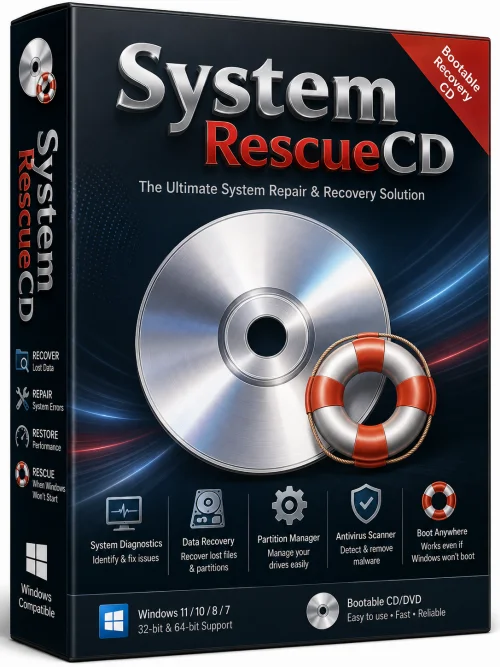
SystemRescueCd Full is a powerful, versatile, and indispensable system rescue toolkit delivered as a bootable Linux live CD or USB drive. It is designed to help users repair, recover, and restore damaged or unbootable systems, manage partitions, recover lost data, and perform a wide array of administrative tasks on both Linux and Windows machines. Unlike many recovery tools that require a full installation, SystemRescueCd runs directly from removable media, providing a pristine, isolated environment that is immune to the issues affecting the host operating system. Whether you are a system administrator, IT professional, or a home user facing a sudden boot failure, SystemRescueCd Full is a comprehensive emergency solution that can save your data and get your system back on track.
This software is built on a solid Arch Linux base and uses the lightweight Xfce desktop environment when a graphical mode is required. It ships with an extensive collection of specialized utilities, including disk cloning tools, partition managers, file recovery applications, network diagnostic tools, and memory testers. The 'Full' edition ensures that you have access to every available package and utility without needing an internet connection during the actual repair, making it a true offline Swiss Army knife for system emergencies.
Key Features of SystemRescueCd Full
- Extensive Recovery Toolkit: Includes TestDisk, PhotoRec, ddrescue, and other powerful utilities to recover lost partitions and files from corrupted drives.
- Comprehensive Partition Management: Supports GParted, fdisk, parted, and other tools to create, resize, move, or format partitions on MBR and GPT disks.
- Disk Imaging and Cloning: Provides tools like Clonezilla, fsarchiver, and partimage for complete system backup and deployment.
- Data Carving and Forensic Tools: Includes foremost, scalpel, and binwalk to extract data from raw images and perform digital forensic analysis.
- Boot Repair and Bootloader Management: Offers tools like chroot, grub-install, and boot-repair utility to fix GRUB or Windows boot issues.
- Network and System Diagnostics: Includes nmap, tcpdump, iperf, and numerous network tools for troubleshooting connectivity and performing security audits.
- Hardware Testing: Memory testing with Memtest86+, CPU stress tests, and disk health checks using smartctl.
- File System Support: Native read/write support for ext2/3/4, NTFS, FAT, exFAT, HFS+, and many other file systems.
- Full Suite of Utilities: Contains a wide range of text editors, file managers, web browsers, and terminal emulators for a complete rescue environment.
System Requirements for SystemRescueCd Full
Minimum Requirements
- CPU: Any x86_64 (64-bit) processor, including Intel and AMD.
- RAM: 512 MB (will run, but be very slow, especially when using the graphical environment).
- Storage: At least 1 GB of free space for the CD image or USB installation; the live system runs completely in RAM.
- Display: VGA-compatible graphics card with at least 1024x768 resolution for graphical mode.
- Media: CD/DVD drive or USB port (USB 2.0 or higher recommended).
Recommended Requirements
- CPU: Multi-core processor (e.g., Intel Core i5 or AMD Ryzen 5) for faster encryption, compression, and partition operations.
- RAM: 2 GB or more to run graphical tools like GParted and Firefox smoothly, and to handle larger file systems.
- Storage: 4 GB of free space if you plan to use persistent storage for saving configuration files and utilities.
- Display: GPU with hardware acceleration for a smoother Xfce experience (though not strictly necessary).
- Network: Ethernet or Wi-Fi adapter with working drivers for online updates and network diagnostics.
How to Install and Use SystemRescueCd Full
Step 1: Download the ISO Image
Visit the official SystemRescueCd website and download the latest 'systemrescue-.iso' file. The Full edition includes all optional packages, so ensure you select the full variant.
Step 2: Create a Bootable USB Drive (or Burn a CD)
If you prefer a CD, burn the ISO using your favorite burning software (e.g., Brasero, ImgBurn). For a USB drive, use a tool like Rufus (Windows), Etcher (cross-platform), or the built-in dd command on Linux:
sudo dd if=systemrescue-.iso of=/dev/sdX bs=1M status=progress
Replace /dev/sdX with your USB device identifier. Ensure you select the correct drive to avoid data loss.
Step 3: Boot from the Media
Restart your computer and enter the boot menu (usually by pressing F12, F2, or Esc during startup). Choose your USB drive or CD. SystemRescueCd will load a boot menu where you can select the default entry or choose fallback options like 'nomodeset' for graphics driver issues.
Step 4: Start the Rescue Environment
Once booted, you will see a command prompt or a graphical desktop depending on your selection. Type startx at the prompt to launch the Xfce desktop environment, or simply wait if the system boots directly to the GUI.
Step 5: Repair, Recover, and Restore
- Open a terminal and mount the damaged partition: mount /dev/sda1 /mnt/windows (adjust device and mount point).
- Use GParted to inspect and fix partition tables: launch gparted from the menu.
- Run TestDisk to recover lost partitions: testdisk /dev/sda.
- Use PhotoRec to undelete files from a storage device.
- Rebuild your bootloader with chroot: mount your Linux root partition, then run grub-install and update-grub inside the chroot environment.
- Clone a failing drive to a new one using Clonezilla or ddrescue.
Step 6: Reboot and Disconnect Media
After completing your repairs, shut down SystemRescueCd properly, remove the USB drive or CD, and reboot into your recovered operating system.
Pros and Cons of SystemRescueCd Full
Pros
- Extremely Powerful: Bundles nearly every Linux rescue utility you could need, eliminating the need to download tools on the fly.
- Boots on Almost Any Computer: Supports modern UEFI and legacy BIOS systems, with a large array of hardware drivers.
- Non-Invasive: Runs entirely in RAM without touching your hard drives unless you explicitly mount them, ensuring your environment stays clean.
- Regular Updates: Active development with frequent releases that include the latest kernels and tools.
- Free and Open Source: No licensing fees, and you can customize or modify it to fit your needs.
- Live Environment: You also get a full Linux desktop with a web browser, making it useful for general troubleshooting or online research.
Cons
- Steep Learning Curve: The extensive toolset can be overwhelming for beginners; many utilities require command-line knowledge.
- No Persistent Storage by Default: Any changes made during the session are lost unless you configure persistence, which requires extra steps.
- Large Download Size: The Full version is significantly larger than the minimal edition, making downloads slower and requiring more storage space.
- Limited Support for Some Hardware: While extremely broad, some very new or proprietary hardware might not be fully supported out of the box.
- Primarily Linux-Oriented: Windows users may find themselves using unfamiliar commands and tools, though graphical options exist for many tasks.
Conclusion
SystemRescueCd Full is the ultimate emergency repair toolkit that every system administrator and serious computer user should have in their arsenal. Its sheer comprehensiveness, reliability, and ability to boot from any media make it an invaluable resource for diagnosing and fixing a wide range of system failures. While it may pose a learning curve for novices, the official documentation and a wealth of online tutorials can quickly bring anyone up to speed. The Full edition ensures that you are prepared for even the most obscure scenarios, with every tool you might need already on board. Whether you are recovering a deleted file, rescuing a dead hard drive, or repairing a non-booting system, SystemRescueCd Full is a proven, robust solution that stands the test of time.
By keeping a bootable SystemRescueCd USB drive in your emergency kit, you are investing in peace of mind. It transforms a catastrophic system failure into a manageable, fixable problem. Don't wait until disaster strikes—download SystemRescueCd Full today and be ready for anything.