Microsoft Edge – Full Ad Blocking Old & Previous Versions
Download legacy versions of Microsoft Edge – Full Ad Blocking.
Overview
Introduction and Overview
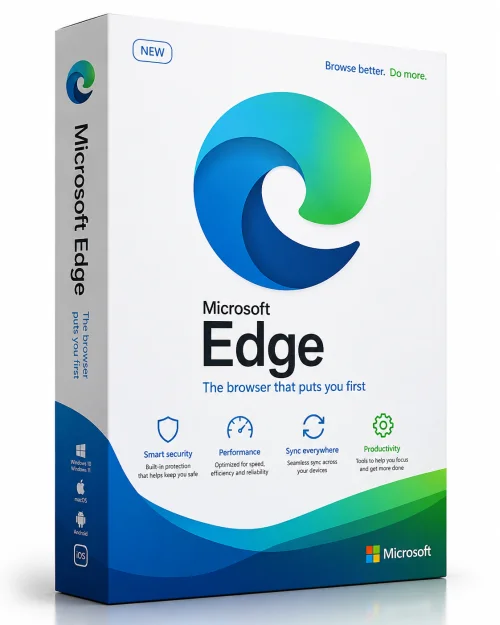
Microsoft Edge – Full Ad Blocking is not just a web browser; it is a comprehensive browsing solution designed to deliver a faster, cleaner, and more secure online experience. Built on Chromium technology, Microsoft Edge has evolved from a default Windows browser into a powerful tool that integrates ad blocking directly into its core. By automatically blocking intrusive ads, trackers, and malicious content, Edge lets you focus on what matters most—your content, your privacy, and your productivity.
Unlike standalone ad blocker extensions that can slow down your browser or compromise your data, Microsoft Edge’s built-in ad blocking is natively optimized for performance and security. It works seamlessly across all websites, eliminating banner ads, video ads, pop-ups, and even auto-playing content. Whether you are a casual internet user or a professional who spends hours online, this full ad blocking capability transforms your browsing into a distraction-free journey.
The browser also prioritizes user privacy by preventing tracking cookies and fingerprinting attempts. With regular updates and integration with Microsoft Defender SmartScreen, it safeguards against phishing and malware. In this article, we’ll explore why Microsoft Edge – Full Ad Blocking is a must-have for anyone seeking a cleaner, faster, and safer internet experience.
Key Features
Microsoft Edge – Full Ad Blocking comes packed with a wide array of features that go beyond simple ad suppression. Here are the standout capabilities that set it apart:
- Native Ad Blocker: Automatically blocks display ads, video ads, and pop-ups without requiring extra extensions, ensuring smoother page loads and lower data usage.
- Tracker Prevention: Three levels of blocking (Basic, Balanced, and Strict) prevent third-party trackers from following your online activity, enhancing privacy.
- Efficiency Mode: Intelligently reduces CPU and memory usage, especially when browsing with multiple tabs, extending battery life on laptops.
- Sleeping Tabs: Frees up resources by putting inactive tabs to sleep, while preserving their state when you return.
- Edge Secure Network: Built-in VPN feature that encrypts your connection and masks your IP address, available with free daily data allowances.
- Performance Mode: Optimizes browser speed by prioritizing active tabs and limiting background activity.
- Collections and Workspaces: Organize research and collaborate with groups of tabs, enhancing workflow and productivity.
- Shopping Intelligence: Integrated price comparison and coupon finder help you save money without obtrusive ads.
- Compatibility: Supports all Chromium extensions, giving you access to thousands of additional tools from the Chrome Web Store.
- Cross-Platform Syncing: Syncs bookmarks, passwords, history, and even open tabs across all your devices.
System Requirements
To ensure the best performance and full ad blocking functionality, your device should meet the following specifications. Note that requirements vary slightly by operating system.
Minimum Requirements
- OS: Windows 10/11 (64-bit), macOS 11.0 or later, Linux (Ubuntu 18.04/20.04, Fedora 30+), or Android 8.0 / iOS 14.0
- Processor: 1 GHz or faster with support for SSE3
- RAM: 2 GB (4 GB recommended for 64-bit)
- Storage: 500 MB free space
- Display: 1024 x 768 resolution or higher
- Internet: Broadband connection required for updates and cloud features
Recommended Requirements
- OS: Latest version of Windows 11, macOS 13 Ventura, or a current Linux distribution
- Processor: Dual-core 2 GHz or faster
- RAM: 8 GB or more for smooth multitasking
- Storage: 1 GB SSD for expedited loading
- Display: 1920 x 1080 or higher with hardware acceleration
- Internet: Stable connection for real-time security updates and VPN usage
How to Install and Use
Installing and configuring Microsoft Edge – Full Ad Blocking is a straightforward process. Follow these simple steps to get started and maximize your ad-blocking experience.
Installation
- Download: Visit the official Microsoft Edge website or your device’s app store (Microsoft Store, App Store, Google Play). Download the installer for your platform.
- Run the Installer: Double-click the downloaded file and follow the on-screen instructions. On Windows, you can choose the installation directory and whether to import data from other browsers.
- Launch Edge: Once installation is complete, launch Edge from your desktop, taskbar, or applications folder. The first-run experience will guide you through sign-in and privacy settings.
- Set as Default: If you wish, you can set Edge as your default browser during the setup or later via your system’s settings.
Enabling Full Ad Blocking
- Open Settings: Click the three-dot menu in the top-right corner and select 'Settings'.
- Privacy, Search, and Services: In the left sidebar, click this option. Scroll down to the 'Security' section.
- Block Ads: Under 'Ads and trackers', toggle on 'Block ads on sites where ads are intrusive or misleading'. You can also choose 'Block all ads' for maximum filtering.
- Adjust Tracker Prevention: Navigate to 'Tracking prevention' and select 'Balanced' (recommended) or 'Strict' for the highest level of blocking.
- Manage Exceptions: If you want to support specific websites, you can add them to the 'Allowed' list, disabling ad blocking on those domains.
For advanced users, you can also install additional ad-blocking extensions from the Edge Add-ons store. However, the built-in functionality is robust enough for most users and ensures optimal browser performance.
Pros and Cons
As with any software, Microsoft Edge – Full Ad Blocking has its strengths and potential limitations. Here’s an unbiased look at what you can expect.
Pros
- Integrated Ad Blocking: No need for third-party extensions, which often drain memory and slow down browsing.
- Enhanced Privacy: Built-in tracker prevention and optional VPN protect your identity and browsing habits.
- Fast and Lightweight: Native ad filtering speeds up page load times and reduces bandwidth consumption.
- Cross-Platform: Available on Windows, macOS, Linux, Android, and iOS, with seamless syncing.
- Regular Updates: Microsoft consistently improves security, performance, and new features.
- Excellent Compatibility: Based on Chromium, so it supports all Chrome extensions and modern web standards.
Cons
- Resource Usage on Low-End Devices: Despite optimizations, heavy browsing sessions can still consume significant RAM.
- Limited VPN Data: The built-in Secure Network offers only 5 GB of free data per month; more requires a subscription.
- Default Settings: Some users find the 'Balanced' ad blocking too moderate and have to manually enable stricter blocks.
- Bing Integration: The browser pushes Bing as the default search engine, which may not appeal to all users.
- Privacy Concerns: Microsoft collects some telemetry data, although users can disable most of it in privacy settings.
Conclusion
Microsoft Edge – Full Ad Blocking delivers a compelling package for users who want a streamlined, secure, and ad-free internet experience without the hassle of managing multiple browser extensions. Its native ad blocker, robust privacy controls, and modern feature set make it a top choice for both personal and professional use. While it has minor drawbacks—primarily around resource usage on older hardware and aggressive Bing promotion—the overall performance and reliability are undeniable.
Whether you are tired of cluttered webpages, concerned about online tracking, or simply seeking a faster browser, Edge proves to be a powerful contender in the world of web browsing. With its continuous updates and integration with the Microsoft ecosystem, choosing Edge is a future-proof decision. Download it today and enjoy the internet as it should be: fast, clean, and entirely on your terms.